
It Takes Two Local Co Op: Easy Split-Screen Setup Guide
Set up It Takes Two local co op with PC and PS5 controller steps, split-screen tips, and answers about Friend's Pass. Start playing together on one screen.
Jump to
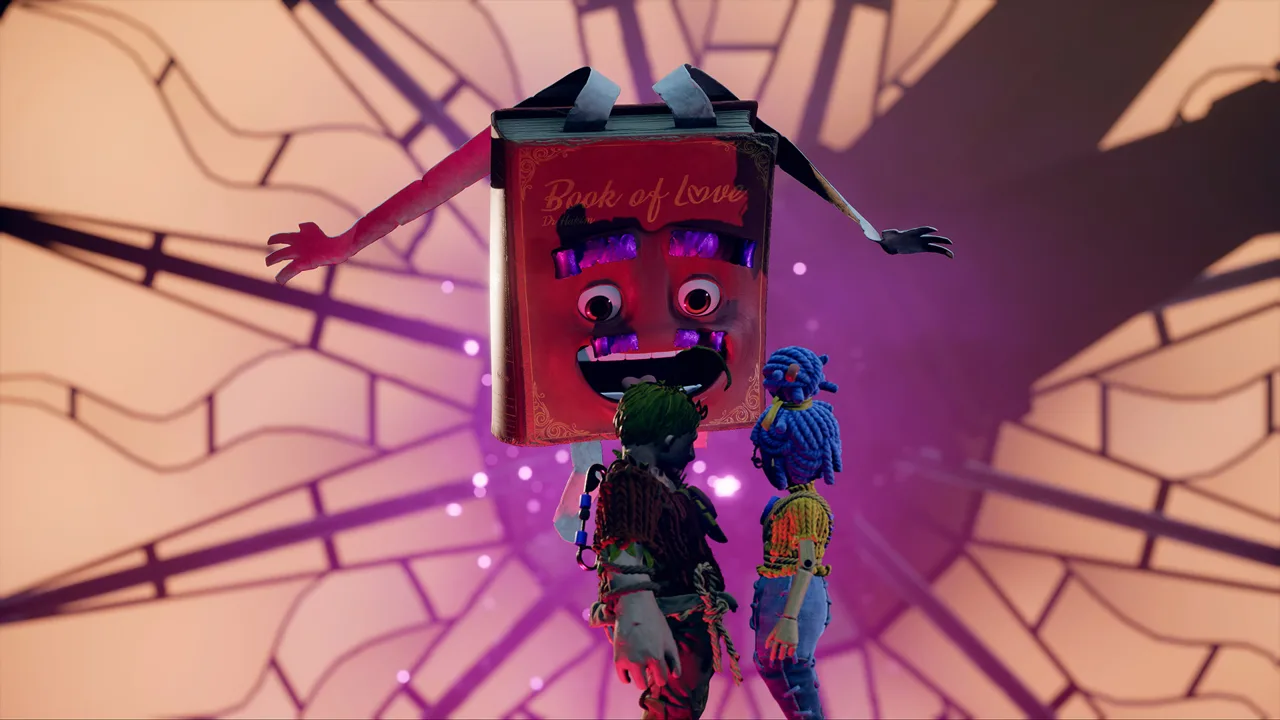
How Does It Takes Two Local Co Op Work?
One screen, two players, and a household turned into an obstacle course: It Takes Two local co op lets you tackle Cody and May’s adventure together on the same console or PC. Getting the controls connected and joining through the right menu gets you into the action without a second game purchase. To start It Takes Two local co op, launch the full game, choose Play Local, and have both players join with their own controls.
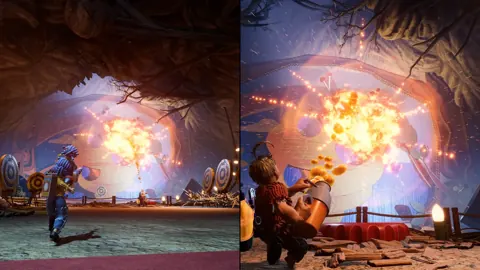
The campaign is built for exactly two players. One person controls Cody, the other controls May, and split-screen play gives each person a view of the action. Both characters have roles to perform, with connected abilities that change as you move through the adventure.
You can play couch co-op on PlayStation, Xbox, PC, and Nintendo Switch. The Nintendo Switch 2 version is also available as of October 15, 2026.
| Local co-op requirement | What you need |
|---|---|
| Players | Two people |
| Game access | One copy of the full game on the shared system |
| Console controls | Separate compatible controls for each player |
| PC controls | Two controllers, or one controller plus keyboard and mouse |
| Display | One shared screen showing both players’ views |
| Starting menu | Play Local |
You don’t need to arrange an online invitation when you’re sitting together. Friend’s Pass serves a different purpose: it lets a partner join the full adventure online without buying another copy.
Before settling in, position the display so both players can comfortably see their side. During puzzles, look at your partner’s view as well as your own. Since your abilities connect, something visible on their screen can help you understand what to do next.
Official page: It Takes Two (ea.com)
How to Start a Local Split-Screen Game
The basic It Takes Two local co op setup follows the same pattern: connect the controls, join the local lobby, and choose different characters. Platform menus handle controller pairing, while the game handles joining the session.
 Image: Steam / Hazelight Studios
Connect your controllers before moving through the lobby. On PC, decide whether you’re using two gamepads or letting one person use keyboard and mouse.
| Step | Action | What to check |
|---|---|---|
| Connect controls | Pair or connect each player’s input device | Each player has separate controls |
| Open the local lobby | Select Play Local from the main menu | The game displays the player slots |
| Join the session | Use each player’s displayed join prompt | Both players appear in the lobby |
| Start the adventure | Select New Game when beginning a fresh playthrough | Both players are ready |
| Choose characters | Assign Cody and May to different players | Each person has a different character |
On PlayStation controllers, the local joining prompt uses X. With Xbox-style prompts, it uses A. Follow the prompt shown for your connected device rather than looking for an online friend invitation.
Once both players have joined, begin a new game and choose your characters. You cannot both select Cody or both select May.
Choosing Cody and May
Cody and May receive different abilities, and those abilities connect during challenges. Choose a character, then pay attention when the game introduces a new mechanic. Explain what your character can do so your partner can connect it with their own role.
For example, say what you’re aiming at or which obstacle you’re trying to reach before asking your partner to act. “Use your ability here when I’m ready” gives them more to work with than “Do something!”
During skippable scenes, both players need to hold their displayed skip input. If you both want to move ahead, have each person use the prompt on their own controls.
It Takes Two Local Co Op on PC
You can play It Takes Two local co op on a single PC with two controllers or with a keyboard-and-mouse setup alongside one controller. You don’t need another computer, another monitor, or a second copy for the person beside you.
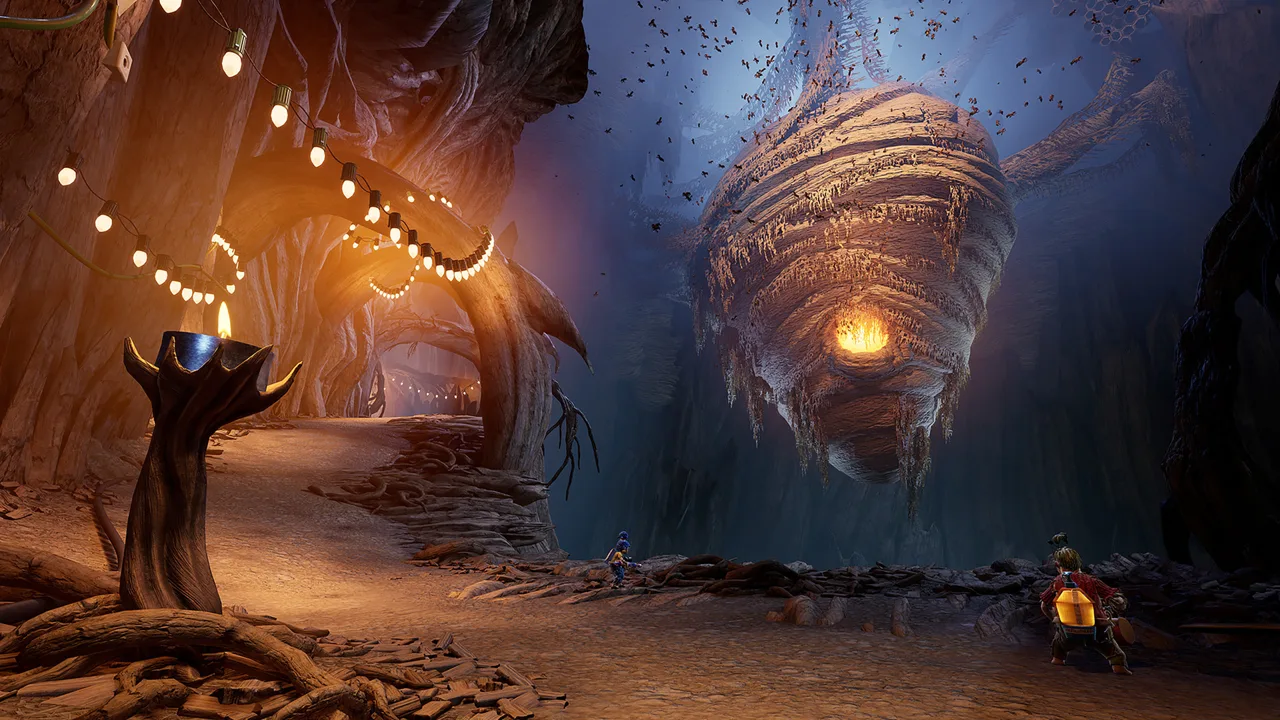 Image: Steam / Hazelight Studios
Choose your input arrangement before opening the local lobby:
| Input arrangement | Player one | Player two |
|---|---|---|
| Two controllers | Compatible controller | Compatible controller |
| Keyboard and controller | Keyboard and mouse | Compatible controller |
Keyboard and mouse work together as a combined input method. They do not provide separate controls for two players. If you have one gamepad, let one person use it while the other takes the keyboard and mouse.
The Steam version supports controllers, including DualShock and DualSense devices. Connect your chosen gamepads, open Play Local, and follow the displayed joining prompts.
Joining With Keyboard and Mouse Plus a Controller
Assign the keyboard and mouse to a player and connect the controller for their partner. Enter the local lobby, then use the appropriate prompt for each input device to join.
Check that both player slots are occupied before starting. If a player slot remains empty, return your attention to the joining screen and have the other player use their own device.
Keep your devices assigned consistently while you join. If you intend to play on keyboard and mouse, let your partner handle the controller’s prompt so each person can follow their own place in the lobby.
Do You Need the EA App on Steam?
The current Steam version no longer requires the EA App launcher. An EA account is also unnecessary for local play or Steam Remote Play Together.
An EA account is still required when connecting to EA servers for online play. Selecting Play Online prompts you to link an account if one is not already linked.
For a couch session on Steam, open the game and choose Play Local. Account linking for online multiplayer is a separate setup path.
If the Second Player Hasn’t Joined
Check the input arrangement before changing anything else:
- Give each player a separate input method.
- With one controller, assign keyboard and mouse to the other person.
- With two controllers, connect both before joining.
- Use the join prompt on each player’s own device.
- Confirm that you selected Play Local.
Work through those checks before starting the adventure. A controller being connected to the PC and a player joining the lobby are separate steps.
How to Add a Second Player on PS5
For It Takes Two local co op on PS5, connect the second DualSense controller to the console and assign it to another user or a guest. After that, return to the game and join through Play Local.
If the second controller isn’t paired yet, complete that part in the PS5 settings.
Pair the Second DualSense
Use the connected primary controller to navigate:
- Open the PS5 home screen.
- Go to Settings, then Accessories.
- Open Bluetooth Accessories.
- On the second DualSense, hold the PS button and Create button until its light bar flashes.
- Select the wireless controller when it appears in the accessories menu.
- Confirm that you want to register it.
Once the controller is registered, assign it to a user. To play as a guest, choose Add User and continue with the guest option.
Join the Game With the Second Controller
Return to It Takes Two and select Play Local. Press X on the second controller to join the available player slot.
Check that both players are present, then proceed to character selection. Each person chooses a different character before beginning.
If the second controller is connected but its player slot remains empty, check its user assignment and press its joining prompt in the local lobby. Pairing makes the controller available to the PS5; joining places the second player in the game.
For your next couch session, follow the same distinction: establish the controller connection, then join inside It Takes Two.
Local Co Op, Friend’s Pass, and Remote Play Together
It Takes Two local co op, Friend’s Pass, and Steam Remote Play Together let you play with a partner through different setups. Choose the option that matches where you’re playing and which devices you’re using.
| Play option | How you play together | Game ownership |
|---|---|---|
| Local co-op | Both players use the same console or PC | One full copy on the shared system |
| Friend’s Pass | A partner joins online through Friend’s Pass | A player owns the full game for full-game access |
| Steam Remote Play Together | A partner joins a shared play session remotely through Steam | One person owns the game on Steam |
For a partner sitting beside you, choose Play Local. There is no separate Friend’s Pass installation to arrange for that couch session.
For built-in online co-op, Friend’s Pass lets your partner join without purchasing the full game. The participating accounts and online connection belong to that setup rather than the local lobby.
Steam Remote Play Together is another option when your partner is elsewhere. It shares the local play experience remotely through Steam. The Steam version supports it without requiring an EA account.
Online Cross-Play Changed in October 2026
As of the October 15, 2026 update, online cross-play supports PC, Xbox Series X|S, Xbox One, PlayStation 5, PlayStation 4, and Nintendo Switch 2. Update the game to the latest version before arranging a cross-platform online session.
The original Nintendo Switch is outside that announced cross-play platform list.
Cross-play doesn’t change how couch multiplayer starts. Two people sharing one system still use Play Local, connect their controls, and join the same lobby.
Once you’re playing, talk through new abilities instead of assuming your partner sees the same options. Look across the split screen, describe your part of the puzzle, and coordinate your actions. The game keeps changing what Cody and May can do, giving you fresh reasons to work together.
FAQ
Do both players need to buy It Takes Two for local co op?
No. It Takes Two local co op uses one full copy on the shared console or PC. Both players join through Play Local with separate controls. Friend’s Pass is unnecessary for that setup.
Can you play It Takes Two on one PC with one controller?
Yes. You can use keyboard and mouse while your partner uses a compatible controller. You can also connect two controllers. Keyboard and mouse together form a combined input method.
Do you need an EA account for local co-op on Steam?
No. The current Steam version supports local play and Steam Remote Play Together without an EA account or the EA App launcher. An EA account is required to connect to EA servers for online play.
How do you add player two in It Takes Two on PS5?
Connect the second DualSense, assign it to another user or a guest, and open Play Local. Press X on the second controller to join, then choose different characters and start playing.
Continue with
 It Takes Two Online Co Op: Friend's Pass & CrossplaySet up It Takes Two online co op with Friend's Pass, learn which platforms support crossplay, and fix Steam invites so you can start playing together.
More in Coop
It Takes Two Can You Play Alone? Solo Play Explained
It Takes Two can you play alone? Explore solo play limits, two-controller challenges, Friend’s Pass, and ways to team up locally or online with a partner.
It Takes Two Cross Platform: Play With Friends in 2026
It Takes Two cross platform play connects PC, PlayStation, Xbox, and Switch 2. Learn how the update, Friend's Pass, and Steam invites work before you play.
It Takes Two Friend Pass: How to Play Together Free
Use the It Takes Two friend pass to play the full adventure with one copy. Learn setup, Steam invites, cross-play, and Switch options before you team up.
Continue exploring

It Takes Two Vacuum Boss: Complete Co-Op Fight Guide
Beat the It Takes Two vacuum boss with clear co-op roles, mine-return tactics, and tips for dodging shockwaves, explosive tacks, and falling lint. Team up!
It Takes Two Xbox Guide: Co-Op, Cross-Play, and More
Play It Takes Two on Xbox One or Xbox Series X|S with local or online co-op. Team up as Cody and May as their familiar surroundings become huge obstacles.
Join the community
Official channels for news, updates and player help: